
Porodo Smart Watch Ultra Ultimo — Alpine & Ocean Bands
In stock
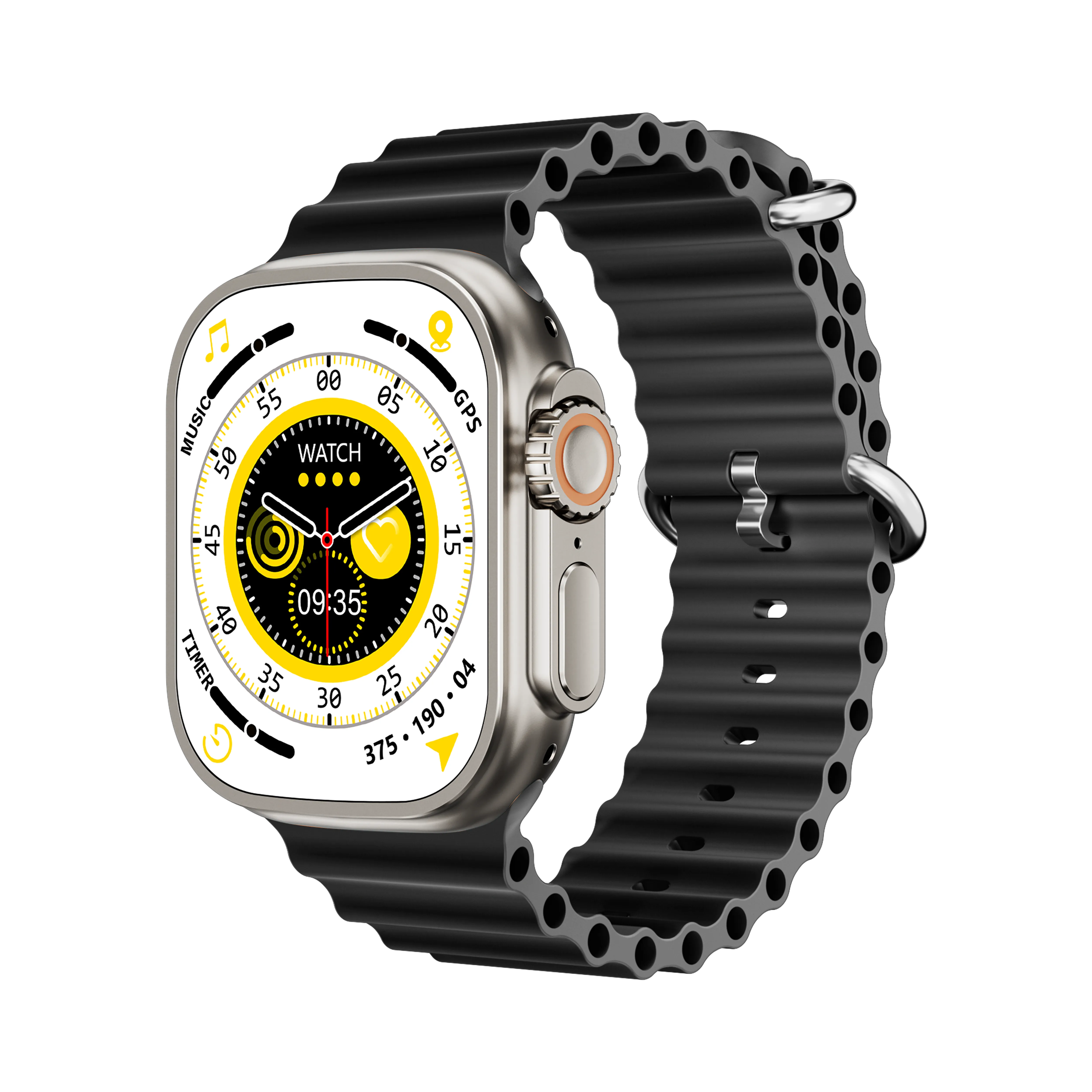
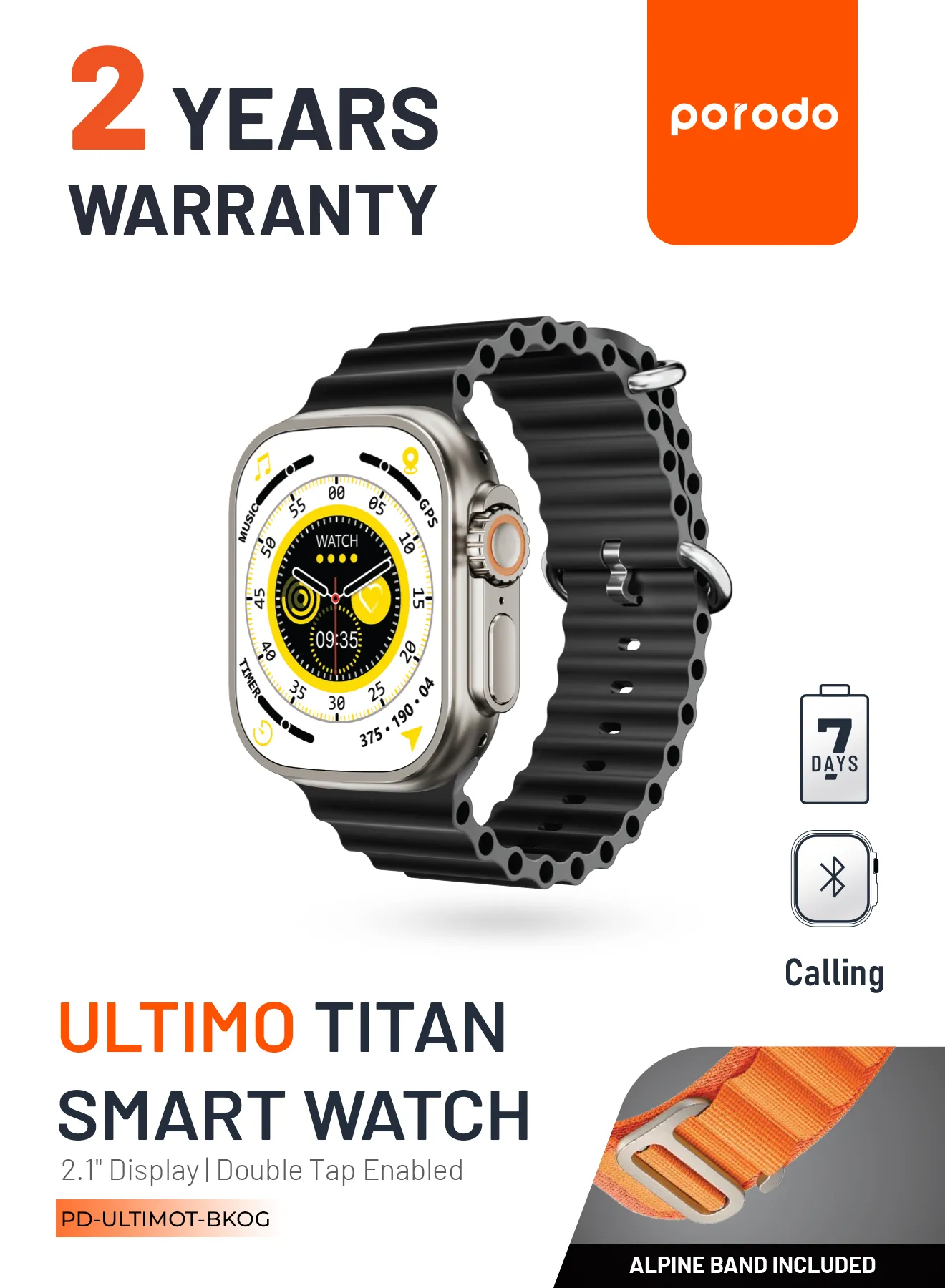
The Porodo Smart Watch Ultra Ultimo is a versatile Bluetooth-connected smartwatch compatible with iOS and Android devices. It ships with two interchangeable bands (Alpine Band & Ocean Band) and supports dual Bluetooth (3.0 & 5.0) for full functionality via the FereFit/EferFit mobile app. Charge with any standard 5V charger. Designed for everyday health, fitness, and smart convenience.
$44.00 $55.00
In stock
The Porodo Smart Watch Ultra Ultimo is a versatile Bluetooth-connected smartwatch compatible with iOS and Android devices. It ships with two interchangeable bands (Alpine Band & Ocean Band) and supports dual Bluetooth (3.0 & 5.0) for full functionality via the FereFit/EferFit mobile app. Charge with any standard 5V charger. Designed for everyday health, fitness, and smart convenience.
Specifications
- Product Name: Smart Watch Ultra Ultimo
- Bands Included: Alpine Band & Ocean Band
- Connectivity: Bluetooth (v3.0 and v5.0)
- Charging: Standard 5V chargers (magnetic contact charging)
- Compatibility: iOS and Android devices
- Charging Contacts: Magnetic alignment on watch back
- Strap: Quick-release mechanism for easy replacement
Important Safety & Warranty Notes
- The watch is NOT waterproof to IP68 standards. Do not use in heavy rain, swimming, hot showers/saunas, or expose to water vapor. Damage from such exposure is not covered by warranty.
- Warranty excludes damage from improper use, deliberate damage, accidents, theft, unauthorized repairs, or normal wear and tear.
- Verify local power specifications before charging devices. Porodo is not responsible for issues arising from incompatible power sources.
Quick Start — Charging & Power
- Place the watch face down and align the magnetic charging cable with the charging contacts until it attaches.
- Use any standard 5V charger (computer USB port or phone adapter).
- Charging caution: Do not allow the charging contacts to touch other conductive materials simultaneously.
- To power on/off: Hold the Lower Right Key (see Controls). When starting, tap the screen to access the menu.
Controls & Navigation
- Upper Right Key:
- Single press: Access menu.
- Press again: Return to previous screen.
- Double press (in main interface): Change menu style.
- Lower Right Key:
- Hold: Power on / power off.
- Tap after start: Access menu / return to main interface.
- Left Button:
- Short press: Activate sports mode.
- Hold: Open button function settings.
- Touch Gestures:
- Swipe left: Quick functions.
- Swipe right: Split-screen UI / return actions.
- Swipe down: Control center.
- Swipe up: Message bar.
- After selecting a function, swipe right to go back.
- Dial Switching:
- Rotate the encoder/dial to switch watch faces or navigate up/down in menus.
Connecting the Watch to Your Phone (FereFit / EferFit App)
- Install the app:
- Scan the QR code supplied with the product (or search “FereFit” / “EferFit” on Google Play / App Store).
- Grant all requested permissions during installation for full functionality.
- Two Bluetooth connections required for full feature set:
- Bluetooth 5.0 connection (recommended): Open app → bottom-right scan → find “Ultimo” → connect. Some Android phones may require GPS enabled.
- Bluetooth 3.0 connection: Turn on watch 3.0 Bluetooth → phone Bluetooth → pair “Ultimo” from device list.
- Connection verification: A blue Bluetooth icon on the status bar indicates a successful link. Gray icon means disconnected.
- If unstable, try toggling phone Bluetooth or factory resetting the watch.
Note: Add the app to phone power-saving whitelist to avoid missed notifications. Desktop WeChat activity can prevent phone notifications from reaching the watch.
Main Functions & How to Use Them
- Phone / Calls:
- Make and receive Bluetooth calls, view call logs and contacts.
- Up to 10 contacts can be synced from phone via the app.
- Dial from the on-watch keypad.
- Activity & Health:
- Steps, distance, calories; daily data resets at midnight.
- Heart Rate: Wear above the wrist bone and keep snug for accurate readings.
- Blood Oxygen (SpO2): Remain still for ~20 seconds while measuring.
- Blood Pressure: Sit still and keep hand flat; measurement takes ~20 seconds.
- Body Temperature: Keep wrist flat and still; measurement ~20 seconds.
- Sleep Monitoring: Tracks sleep from 21:00–09:00; view records in the app.
- Women’s Health: Menstruation and ovulation reminders, safety period calculator.
- Media & Phone Control:
- Music Control: Control phone playback via watch (phone plays audio).
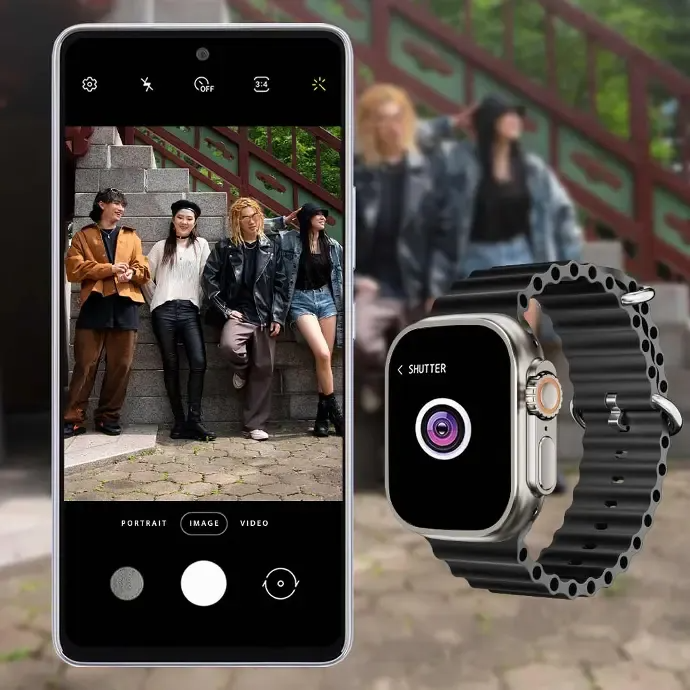
- Photo Capture: Trigger phone camera (phone must be unlocked).
- Find Your Phone: Ring phone via the watch.
- Device Finder: Trigger persistent vibrations via the app to locate watch.
- Location & Weather:
- Real-time location shown when app connected via Bluetooth 5.0 (phone positioning permissions required).
- 7-day weather forecast available when connected.
- Sports & Tools:
- Exercise modes: running, walking, soccer, badminton, tennis, basketball, table tennis, cycling, etc.
- Stopwatch, calculator, breathing exercise, and interactive game (“Birds of Prey”).
- Notifications & Alarms:
- Notifications: Enable app & phone permissions for email, messaging apps (WeChat, QQ, etc.).
- Alarm Clock: Set up to 3 alarms via the app or directly on watch.
- Voice & Assistant:
- Siri / voice assistant access after pairing with Bluetooth 5.0/3.0 and enabling voice command.
Settings & Customization
- Dial Pushing: Customize watch faces via the app (pointer, digital, custom images).
- Menu Styles: Choose different menu displays and full-star zoomable menu.
- Brightness, screen timeout, constant light time, gesture activation (raise to wake), Do Not Disturb, and password settings (default reset code: 8888) are available.
- Power Saving Mode reduces brightness and vibration to extend battery life.
- Factory Reset: Available in Settings to restore original software.
- Device Info: View model, software version, and MAC address in About.
Troubleshooting (Common Issues)
- No notifications:
- Ensure “FereFit/EferFit” app permissions are fully enabled on the phone.
- Add the app to power-saving whitelist.
- If desktop WeChat is active, offline notifications may be blocked.
- Bluetooth unstable:
- Toggle phone Bluetooth, re-pair device, or perform factory reset.
- Some phone brands have stricter Bluetooth implementations—use both 3.0 and 5.0 connections as instructed.
- Inaccurate health readings:
- Ensure correct wearing position (watch above wrist bone), keep still during measurements.
- Watch won’t charge:
- Ensure magnetic contacts align and charging cable is connected to a working 5V source; avoid contact with other conductive materials.
FAQs
Q: Is the Smart Watch Ultra Ultimo waterproof?
A: No. The watch is NOT IP68 waterproof. Avoid heavy rain, swimming, hot showers/saunas, and water vapor exposure. Warranty does not cover water damage.
Q: How do I change the watch face?
A: Rotate the dial/encoder to switch between watch faces. You can also push custom dials from the app.
Q: How many contacts can I sync?
A: Up to 10 contacts via the app.
Q: Why are notifications delayed or missing?
A: Check phone app notification settings, grant all permissions for FereFit/EferFit, whitelist the app in power-saving settings, and ensure desktop WeChat isn’t intercepting notifications.
Warranty & Support
- Warranty exclusions: damage from improper use, deliberate damage, accidents, theft, unauthorized repairs, or normal wear.
- For support, repairs, or further help, contact your retailer or Porodo authorized service center. (Include point-of-sale details or local support link as provided by vendor.)
Additional Notes
- App name may appear as “FereFit” or “EferFit” depending on region/store. Search in the App Store / Google Play or scan the supplied QR code.
- Keep device firmware and app updated for best performance and new features.



Based on 0 reviews
Be the first to review “Porodo Smart Watch Ultra Ultimo — Alpine & Ocean Bands”
You must be logged in to post a review.
Related products
-
-
Cables & Adapters, Cables & Chargers, CABLES HUBS & CONNECTOR, Laptop And Computer, Mobile Accessories
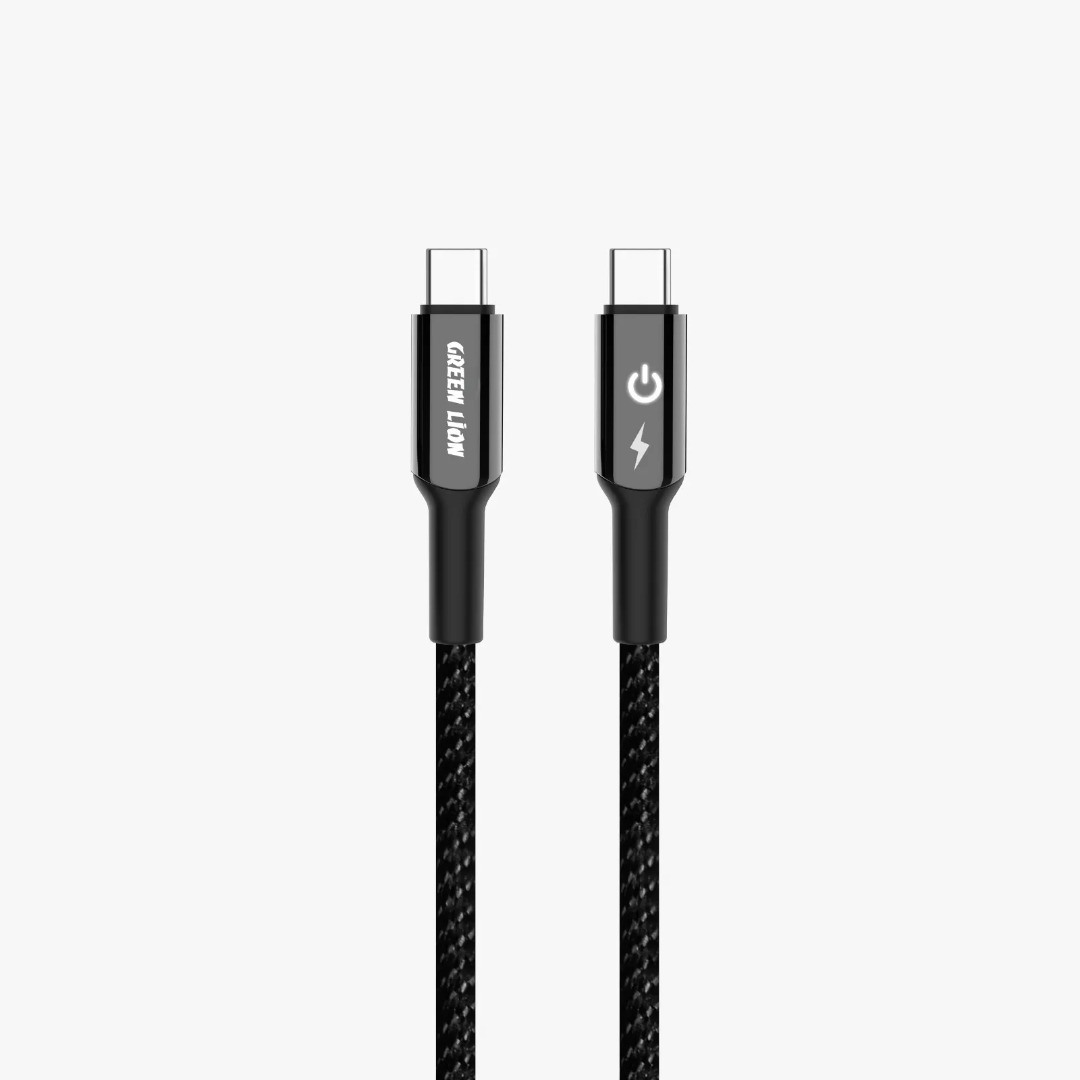
Green Lion USB-C to USB-C Braided Cable 1m 60W Black | Fast Charging
 Cables & Adapters, Cables & Chargers, CABLES HUBS & CONNECTOR, Laptop And Computer, Mobile Accessories
Green Lion USB-C to USB-C Braided Cable 1m 60W Black | Fast Charging
Experience next-level durability with the Green Lion Braided USB-C 2-in-1 Cable Black—m nylon-braided cable supporting 60W/3A charging and 480Mbps data sync. Features zinc connectors, LED indicator, and 10,000+ bend lifespan. Perfect for laptops and high-power devices.[1]
SKU: ET01BRUC2UCBK0024 -
Cables & Adapters, Cables & Chargers, CABLES HUBS & CONNECTOR, Laptop And Computer, Mobile Accessories, Smart Phone Accessories
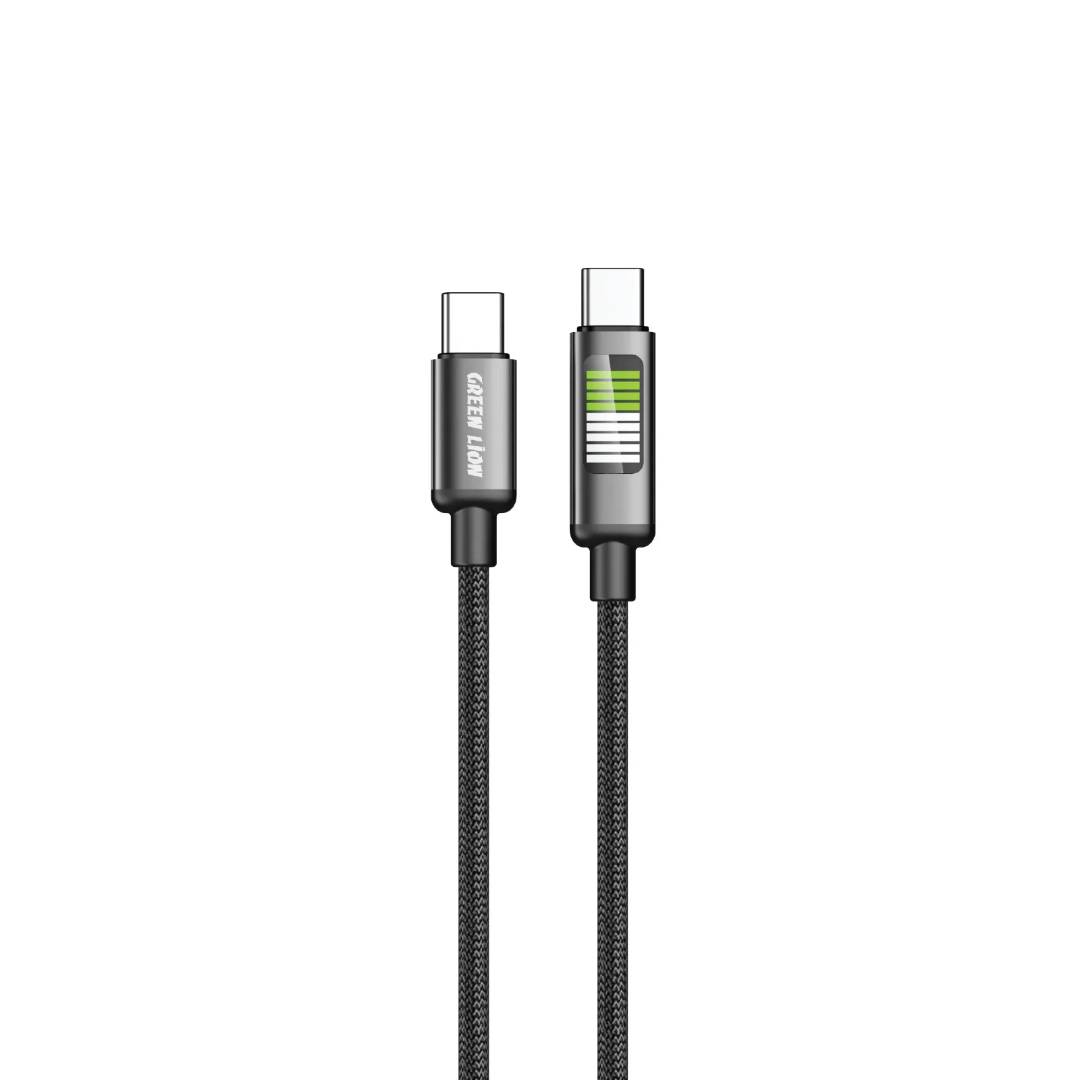
Green Lion LED Type‑C 2‑in‑1 Cable – Black
 Cables & Adapters, Cables & Chargers, CABLES HUBS & CONNECTOR, Laptop And Computer, Mobile Accessories, Smart Phone Accessories
Green Lion LED Type‑C 2‑in‑1 Cable – Black
Transform your connectivity with the Green Lion LED Type‑C 2‑in‑1 Cable in Black. Enjoy 3A fast charging and USB 3.1 data transfer in a durable, nylon‑braided design with a smart LED status indicator. Universal USB‑C compatibility with built‑in safety features.
SKU: ET01LEDTC2TCBK0022 -
Cables & Adapters, Cables & Chargers, CABLES HUBS & CONNECTOR, Laptop And Computer, Mobile Accessories
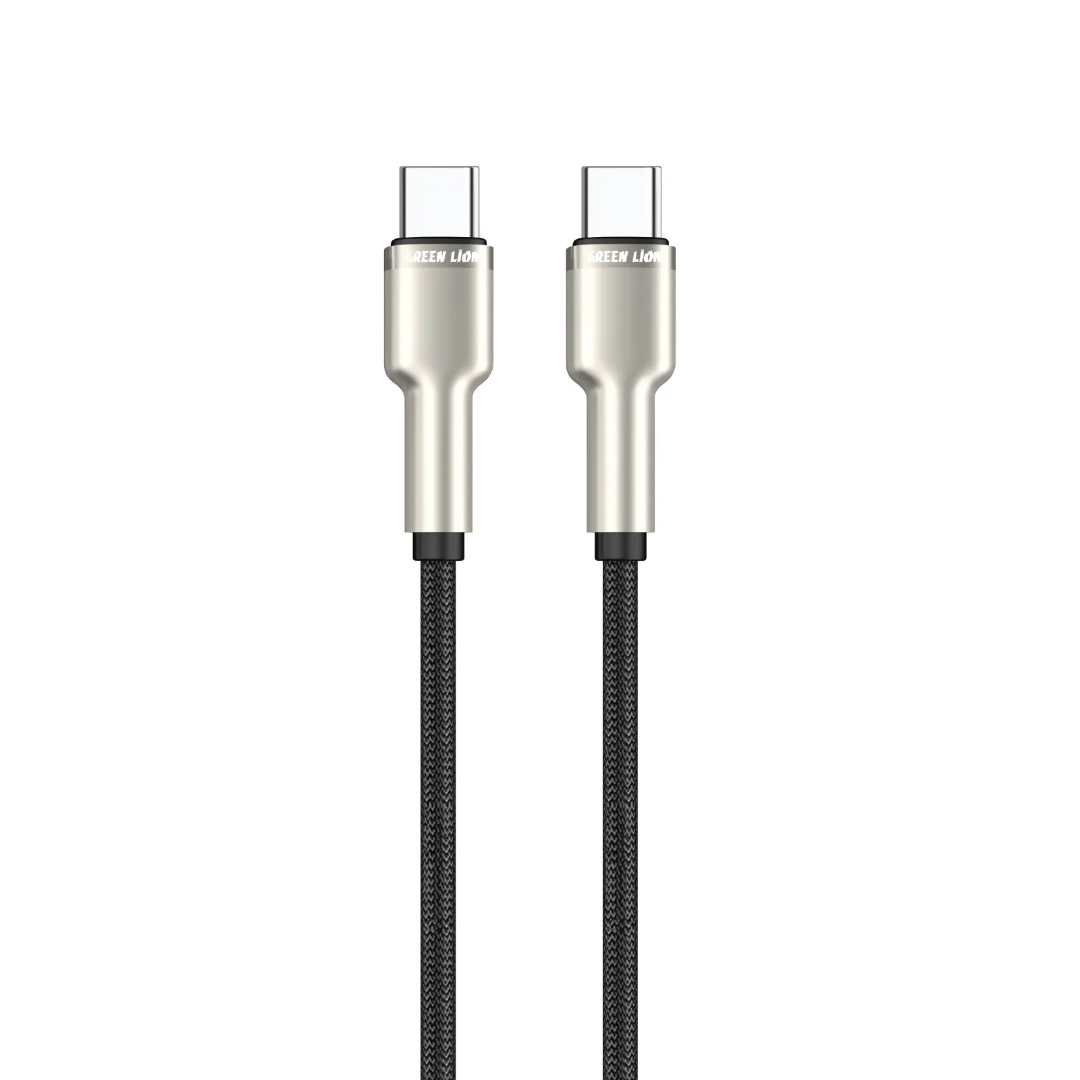
Green Lion USB-C to USB-C Braided Cable – 1m, 60W PD, Black
 Cables & Adapters, Cables & Chargers, CABLES HUBS & CONNECTOR, Laptop And Computer, Mobile Accessories
Green Lion USB-C to USB-C Braided Cable – 1m, 60W PD, Black
Charge and sync with confidence using the Green Lion USB-C to USB-C Braided Cable—1m length, 60W PD (20V/3A) fast charging, 480Mbps data transfer, and durable braided + zinc alloy build tested for 10,000+ bends. Free delivery in Scarborough.
SKU: ET0160BRC2CBK0025
There are no reviews yet.